Deployment Manager
The Deployment Manager is your control center for running, scheduling, and monitoring data pipelines. It provides three deployment types: immediate execution, CRON scheduling, and API endpoints.
Overview
The Deployment Manager offers:
- Immediate Pipeline Execution - Run pipelines on-demand
- CRON Scheduled Deployments - Automate pipeline execution with scheduling
- API Endpoint Deployments - Expose pipelines as HTTP endpoints
- Monitoring Monitoring - Track pipeline runs and performance
- Version Management - Deploy specific pipeline versions
- Environment Support - Deploy to different environments (DEV, PROD, etc.)
Deployment Types
1. Execute Pipeline (Immediate)
Run a pipeline immediately for testing or ad-hoc data processing.
When to Use: - Testing new data steps - One-time data processing tasks - Quick data analysis - Debugging pipeline issues
Configuration: - Workflow: Select the pipeline to execute - Version: Choose specific version (defaults to latest) - Environment: Select target environment - Overlap mode: what happens if a run is already going — see Overlapping runs
2. CRON Deployment (Scheduled)
Schedule pipelines to run automatically using CRON expressions.
When to Use: - Daily data processing jobs - Weekly reports - Monthly aggregations - Regular data synchronization
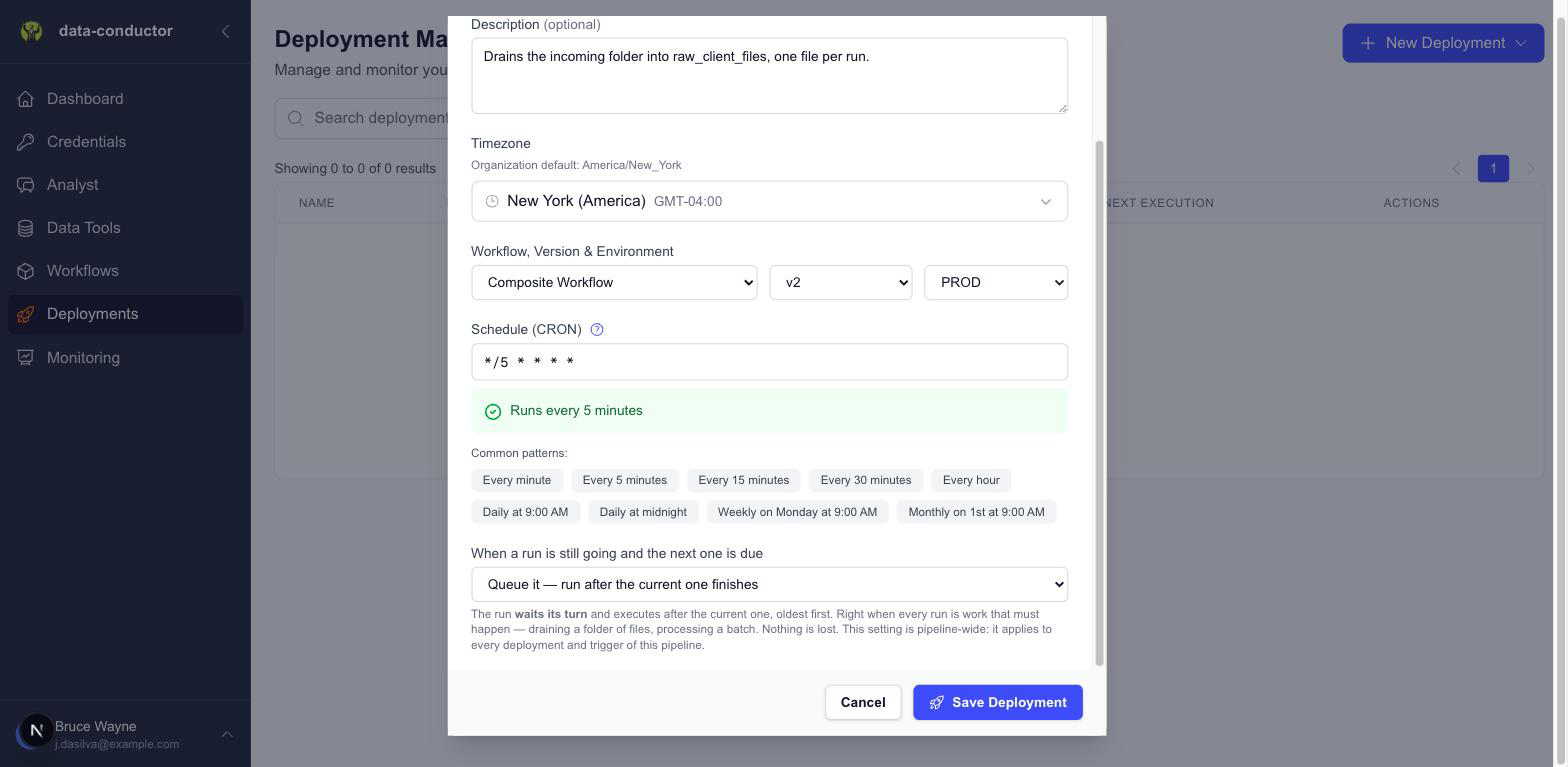
Configuration:
- Name: Descriptive deployment name
- Description: Optional deployment description
- Workflow: Pipeline to schedule
- Version: Specific version to run
- Environment: Target environment
- Schedule: CRON expression (e.g., 0 9 * * * for daily at 9 AM)
- Timezone: Organization timezone for scheduling
- When a run is still going and the next one is due: what happens when a scheduled run overlaps the previous one — see Overlapping runs
Common CRON Patterns
| Pattern | Description | Example Use Case |
|---|---|---|
0 9 * * * |
Daily at 9 AM | Morning data refresh |
0 9 * * MON |
Weekly on Monday 9 AM | Weekly reports |
0 1 1 * * |
Monthly on 1st at 1 AM | Monthly aggregation |
*/15 * * * * |
Every 15 minutes | Real-time monitoring |
0 2 * * SUN |
Weekly on Sunday 2 AM | Weekly maintenance |
3. API Deployment
Expose pipelines as secure HTTP endpoints that can be triggered by external systems.
When to Use: - Webhook integrations - External system triggers - Real-time data processing - Custom application integration
Configuration: - Workflow: Pipeline to expose - Version: Specific version to deploy - Environment: Target environment - Organization Token: Required for authentication - Overlap handling: Skip, Queue, or Run anyway — see Overlapping runs
Managing Deployments
Deployments Tab
The main Deployments tab shows all your configured deployments:
Deployment Information: - Name & Description: Deployment identification - Pipeline: Associated workflow and version - Type: CRON schedule or API endpoint indicator - Status: Active/Inactive state - Next Execution: Scheduled run time (for CRON deployments) - Actions: Edit, activate/deactivate, delete
Deployment Actions
Available Actions: - Edit: Modify deployment configuration - Activate/Deactivate: Enable or disable deployment - Delete: Remove deployment permanently
Monitoring
Execution history lives under Monitoring in the sidebar rather than on this page — see Monitoring. Workflow Executions lists one row per pipeline run; Runs breaks each one down by step.
Either view shows:
Execution Information: - Job ID: Unique execution identifier - Pipeline: Which workflow was executed - Status: Running, Completed, Failed, Cancelled - Duration: Execution time (hours:minutes:seconds) - Started: Execution start time - Trigger: How the execution was initiated - Actions: View details, change status, retry
Environment Management
QA and PROD
Two environments always exist and cannot be removed:
- QA — the default. Executing a query from the editor runs against QA unless you say otherwise, so experimenting is safe by default.
- PROD — production.
Every {{variable}} must have a value in both. Save flows enforce it, so a
placeholder can't reach production unset.
Adding your own
QA and PROD are the floor, not the ceiling. Add environments from the Variables tab with + Env — STAGING, DEV, whatever suits your process. Names are uppercase letters, digits and underscores. A new environment appears as another column in the variables grid immediately; no schema change and no support ticket.
EPHEMERAL is reserved for ad-hoc runs and shouldn't be used as a named
environment.
What actually differs between environments
Variable values. That's the mechanism. The same SQL runs everywhere; the values substituted into it change.
{{TARGET_SCHEMA}}   QA: analytics_qa      PROD: analytics
{{LOOKBACK_DAYS}}   QA: 1                 PROD: 90
A common pattern is pointing QA at a smaller schema or a shorter window, so a QA run is fast and harmless while production does the real work.
Substitution happens server-side at execution. The environment selector next to Run picks which set of values is used — a toggle when only QA and PROD exist, a dropdown once you have three or more.
Version Management
Pipeline Versions
Deploy specific versions of your pipelines:
Version Benefits: - Stability: Deploy tested versions to production - Rollback: Easy reversion to previous versions - Testing: Test new versions in development - Consistency: Ensure same code runs across environments
Version Deployment Strategy
Recommended Approach: 1. Development: Use latest version for testing 2. Staging: Deploy specific stable versions 3. Production: Only deploy thoroughly tested versions
Monitoring and Troubleshooting
Execution Monitoring
Monitor Key Metrics: - Execution Time: Performance trends - Success Rate: Reliability metrics - Error Patterns: Common failure points - Resource Usage: System performance
Common Issues and Solutions
CRON Not Running
Issue: Scheduled deployment not executing
Solutions:
1. Check deployment is active
2. Verify CRON expression syntax
3. Confirm timezone settings
4. Check system logs for errors
API Endpoint Not Responding
Issue: API deployment returning errors
Solutions:
1. Verify organization token is valid
2. Check API endpoint URL
3. Confirm payload format
4. Review authentication headers
Long Execution Times
Issue: Pipelines taking too long to complete
Solutions:
1. Optimize SQL queries in data steps
2. Add LIMIT clauses for testing
3. Check database performance
4. Consider data partitioning
Permission Errors
Issue: Access denied during execution
Solutions:
1. Verify database integration credentials
2. Check user permissions
3. Confirm IP address is trusted
4. Review organization token permissions
Best Practices
CRON Deployment Best Practices
Scheduling Guidelines: - Avoid peak business hours for heavy processing - Stagger multiple deployments to prevent resource conflicts - Choose the right overlap mode — Queue if every run is work that must happen, Skip if a late run is pointless - Set appropriate timeouts for long-running processes
Example Staggered Schedule:
ETL Pipeline A:     0 1 * * *  (1:00 AM)
ETL Pipeline B:     0 2 * * *  (2:00 AM)
Report Pipeline:    0 3 * * *  (3:00 AM)
Cleanup Pipeline:   0 4 * * *  (4:00 AM)
API Deployment Best Practices
Security: - Use organization tokens for authentication - Implement rate limiting on client side - Monitor API usage patterns - Rotate tokens regularly
Performance: - Design for idempotency - Handle timeouts gracefully - Implement retry logic with exponential backoff - Monitor response times
Monitoring Best Practices
Alerting Strategy: - Set up alerts for failed executions - Monitor execution time trends - Track resource usage patterns - Alert on unusual activity
Logging: - Capture detailed execution logs - Log input parameters and outputs - Track performance metrics - Maintain audit trails
Advanced Features
Overlapping runs
Sometimes a scheduled run comes due while the previous one is still going — the pipeline takes twelve minutes and runs every ten, or one day's file is unusually large. You choose what happens.
The setting lives on the pipeline, not the deployment, so every deployment and trigger of that pipeline behaves the same way. You'll find it at the bottom of the CRON deployment form, under "When a run is still going and the next one is due".
Skip it — don't run this time
The scheduled run is dropped, and it is not made up later. The next run happens at its next scheduled time as normal.
Use this when a late run would be pointless rather than merely delayed — refreshing a cache, or syncing "the current state" of something. If the 10:05 refresh is still running at 10:10, running 10:10 afterwards just produces a stale answer nobody wanted.
A dropped run's work never happens
If each run processes something specific — a file, a batch, a day's records — that work is skipped entirely, not deferred. Use Queue it if the work has to happen eventually.
Queue it — run after the current one finishes
The run waits its turn and executes once the current one finishes. Queued runs execute in the order they were created, one at a time.
Use this when every run is work that must happen: draining a folder of files, processing a batch, applying a sequence of changes. Nothing is lost, and the order is guaranteed.
This is the mode for the classic case of "I have a thousand files to ingest into one table" — set a frequent schedule, let the runs queue up, and they drain one after another without ever overlapping.
If a run fails, the queue keeps going and later runs still execute.
A queue has a limit — 50 waiting runs by default. Once it is full, new runs are refused and the reason is recorded, so a pipeline that has stopped working cannot silently accumulate a backlog of thousands.
Run anyway — allow overlapping runs
Runs overlap: two, three or more copies of the pipeline execute at the same time.
Only safe when runs genuinely cannot interfere with each other — no writes to the same table, no locking, no shared state. If two runs write anywhere in common they will race, and which one wins depends on timing.
Which one do I want?
Ask what a late run is worth. If it is worthless because a newer one will come along, choose Skip. If it represents work that has to happen eventually, choose Queue. Choose Run anyway only when you are sure two copies cannot interfere.
Execution Retry Logic
Configure automatic retries for failed executions:
Retry Configuration: - Maximum retry attempts - Retry delay intervals - Failure conditions for retry - Escalation procedures
Custom Variables per Environment
Set different variable values for each environment:
DEV Environment:
- DATABASE_HOST: dev-db.company.com
- BATCH_SIZE: 100

PROD Environment:
- DATABASE_HOST: prod-db.company.com
- BATCH_SIZE: 10000
Next Steps
Now that you understand the Deployment Manager:
- Learn about Pipeline Variables for dynamic configurations
- Set up IP Security to secure your deployments
- Explore API Integrations for external system connections
- Check Troubleshooting Guide for common issues
Ready to secure your organization? Continue to Organization Settings!